From inbox to done, with an agent at your side
Kaluta walks you through each day's mail one thing at a time, turns email into tasks, lets your own AI agent work through them in your own voice, offers free times from your calendar, keeps automated mail out of your way, gives an agent an address of its own, and clears years of mail in one go.
Can you send the revised plan? We need a decision by the end of the month.
Your day's mail, one thing at a time
Kaluta opens on What's Next: how long today's mail will take, the job to start with, the people you know who wrote, and what is worth a look first. Seven workflows each take one daily job, one item at a time from a set fixed when you start, with a key on every button and Undo instead of confirmation dialogs. Esc goes back to your mail and comes back to the same place; mail that arrives meanwhile waits for the end.
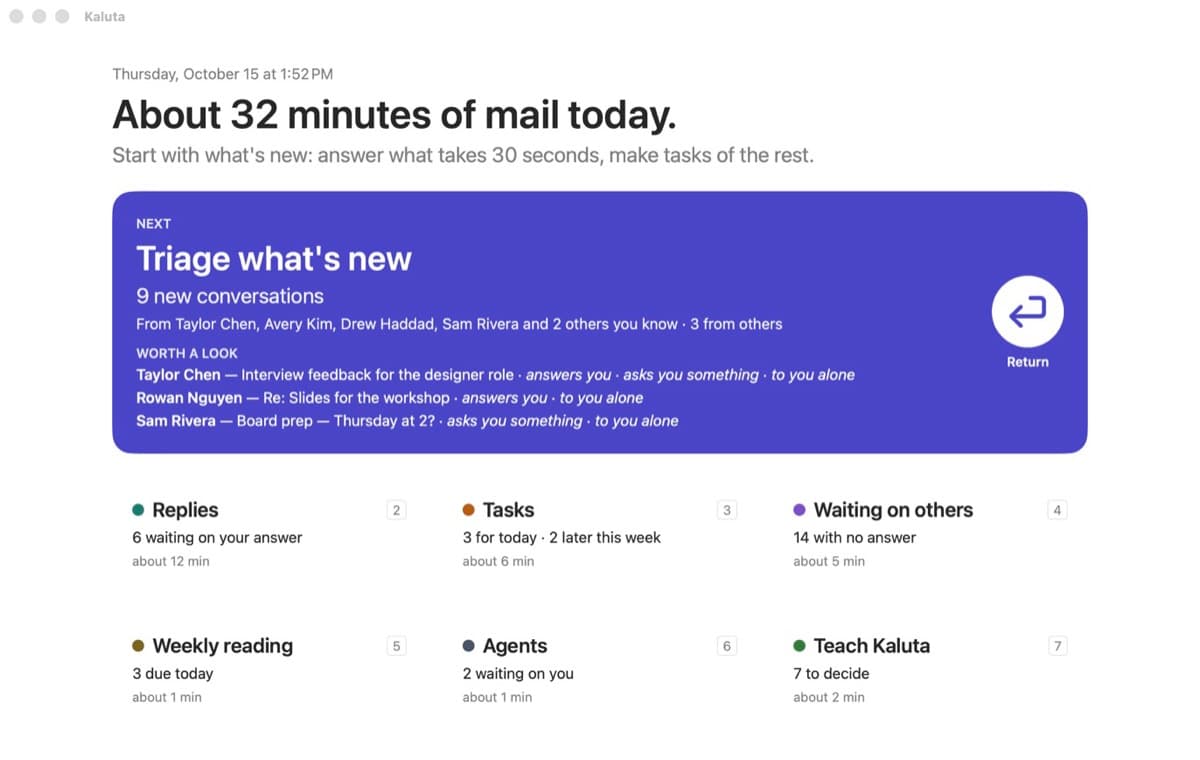

Triage
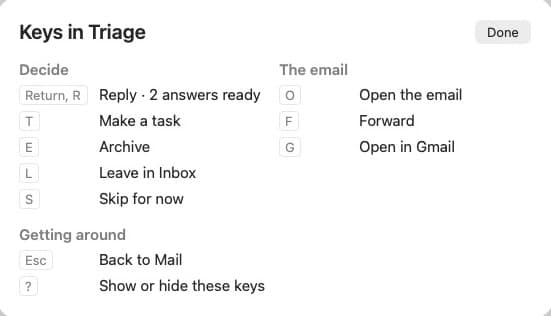
Every new conversation, people first, with Kaluta's suggestion and its reason: a quick reply when the answer takes 30 seconds or less, with up to three answers ready to pick; a task when it takes longer, filled in on the same screen; archive; or leave it in the Inbox. The suggestion is marked on its own button and the keys never move, so Return is always Reply. When an email expects an answer, Kaluta writes a whole reply for each likely option ahead of time, in your style (Reply · 2 answers ready). A long newsletter shows Kaluta's short summary first, and if you already wrote to the sender in another thread, Triage says so.

Replies
Conversations that ask you something and have no task. Where the answers are clear (yes or no, or the email's own choices), a whole reply for each is written ahead; otherwise Kaluta asks what you want to say, with those answers to pick, and writes from that. Use my words makes what you typed the email, with no draft. Sending archives the conversation, Archive (E) is there when no reply is needed, and ⌘Z puts it back.
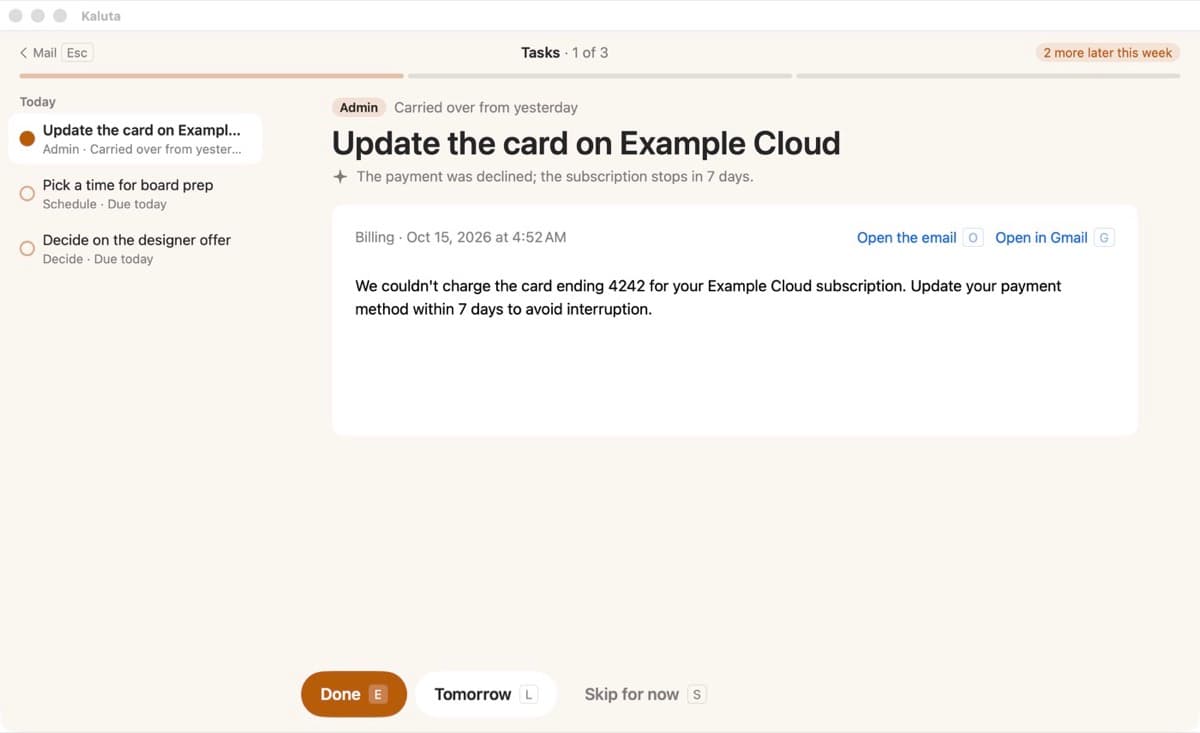
Tasks
Today's tasks one at a time, carried-over ones first, with the email below and the day's set in a rail. A task that ends in a reply asks what you decided, then Send and finish the task completes it and archives the email. Tomorrow moves one on without penalty; one finished elsewhere shows as done.
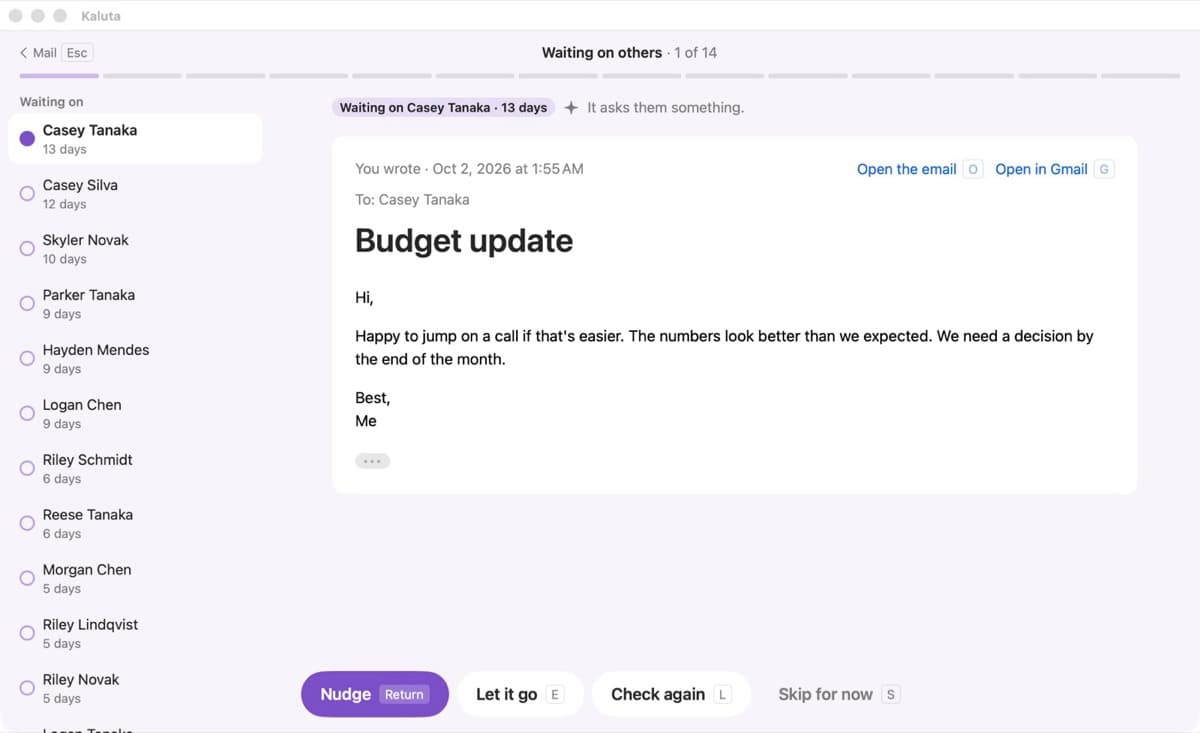
Waiting on others
Once a day Kaluta reads the mail you sent and works out which expects an answer, labelling it Waiting so Gmail sees it too. After three days with no reply (a setting) it joins the list, longest first. Nudge picks from up to three follow-ups written ahead, Let it go takes the label off, and Check again hides it for a day, three days or a week.
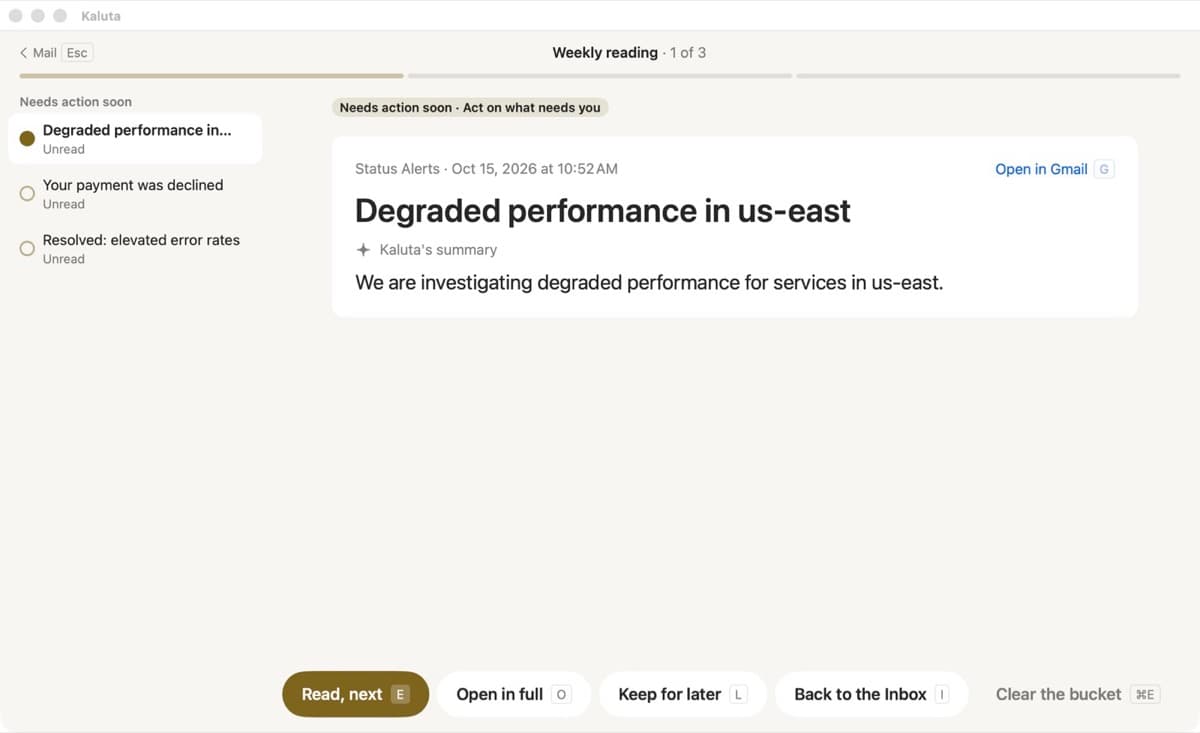
Weekly reading
What your sorting routine filed, on the day each label is due: daily ones every day, weekly ones on Friday or a day you choose, monthly ones on the 1st. A short report comes first, then each label one email at a time as Kaluta's summary, written when the routine sorted it. Reading and clearing mark mail read and keep the label; sending one back to the Inbox has Kaluta propose a change to the routine.
Agents
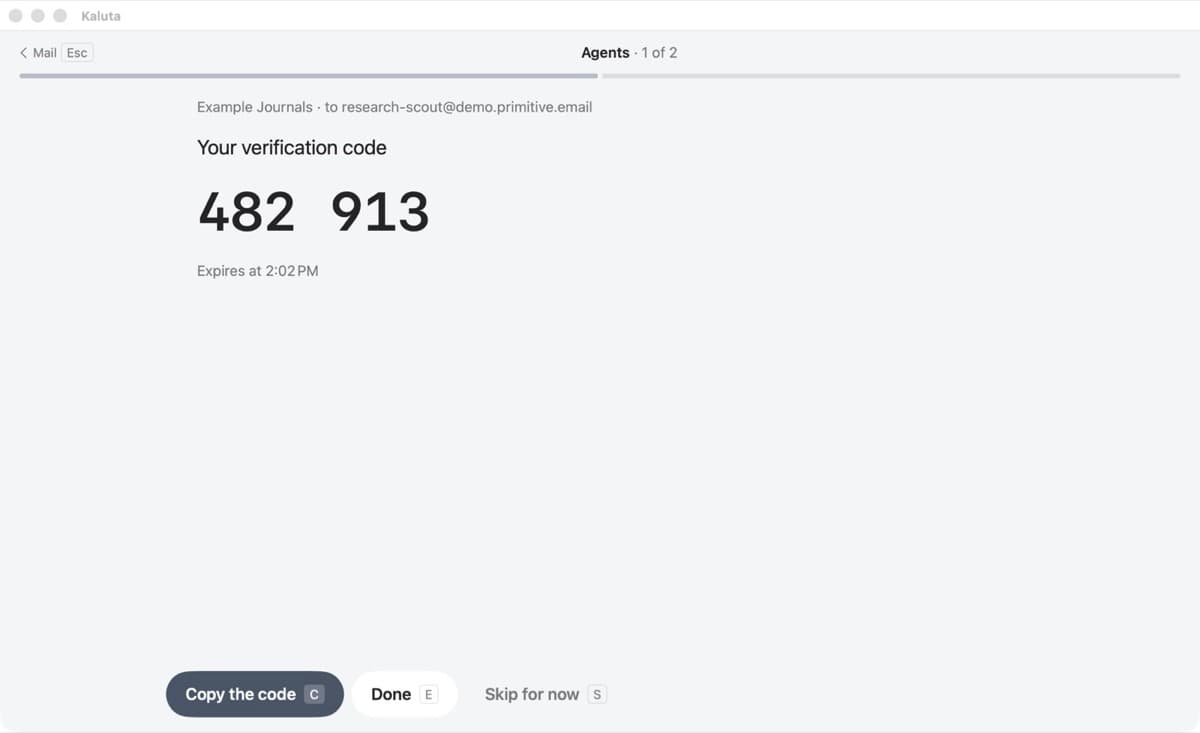
Everything your agents are waiting on you for, across accounts: a send an agent proposed, opened on the email itself to edit and send or not; a verification code that arrived in an agent mailbox, shown large with Copy the code; and this morning's sorting run, to keep or undo. A pill says what agent mailboxes sent on their own.
Teach Kaluta
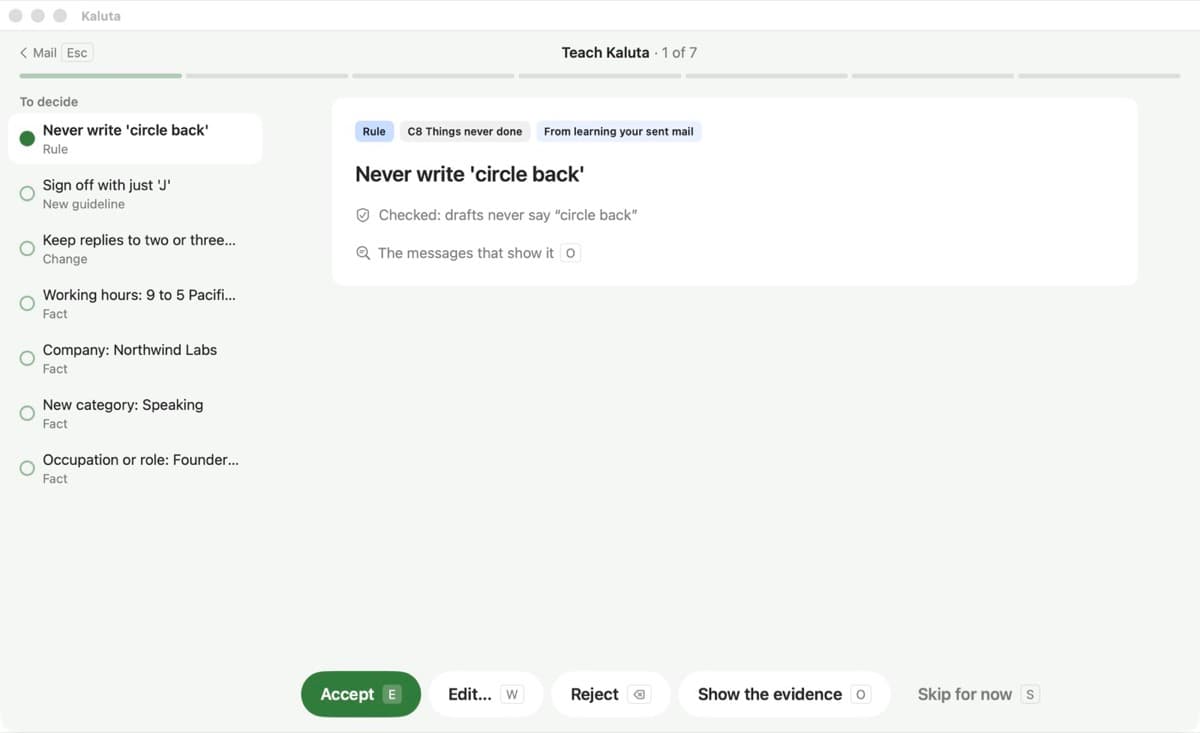
What Kaluta has learned and wants you to approve, one proposal at a time: writing-guide rules, facts about you, and changes to the sorting routine. Each shows the change it makes, with its evidence on O. Accept, edit or reject each one; there is no Accept All, and ⌘Z undoes a decision and its change together.
Kaluta writes after you
Kaluta drafts once you have said what you want, typed or dictated, offers whole replies written ahead to pick from, or takes a first pass with nothing said. When it would have to invent a fact, it asks you, one question at a time with answers to pick, and your answer is proposed as a fact for next time. Every email it writes ends on an editable screen: who it goes to, what you said, Shorter, Warmer or a change in your own words, a file to attach, then Send. Reply all (A) and Forward (F) write under the card too.
The suggestions, summaries, answers and nudges come from your own agent, Claude Code or Codex, working read-only in the background. Emails show as they were sent, and open in their own window (O) or in Gmail (G); C shows the rest of the conversation, and P and N step through it to answer an earlier message. Ending a set closes a ring and plays a short chord. There are no streaks or red counts, and work from an earlier day is carried over, never overdue.
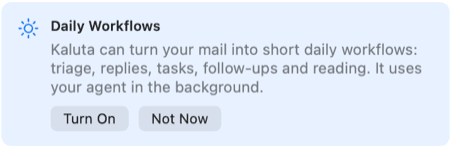
Workflows are a preview. Once Kaluta finds Claude Code or Codex on your Mac, the Inbox offers to turn them on; you can also turn on Open on the start screen in Settings › General.

Turn email into tasks, ready for agents
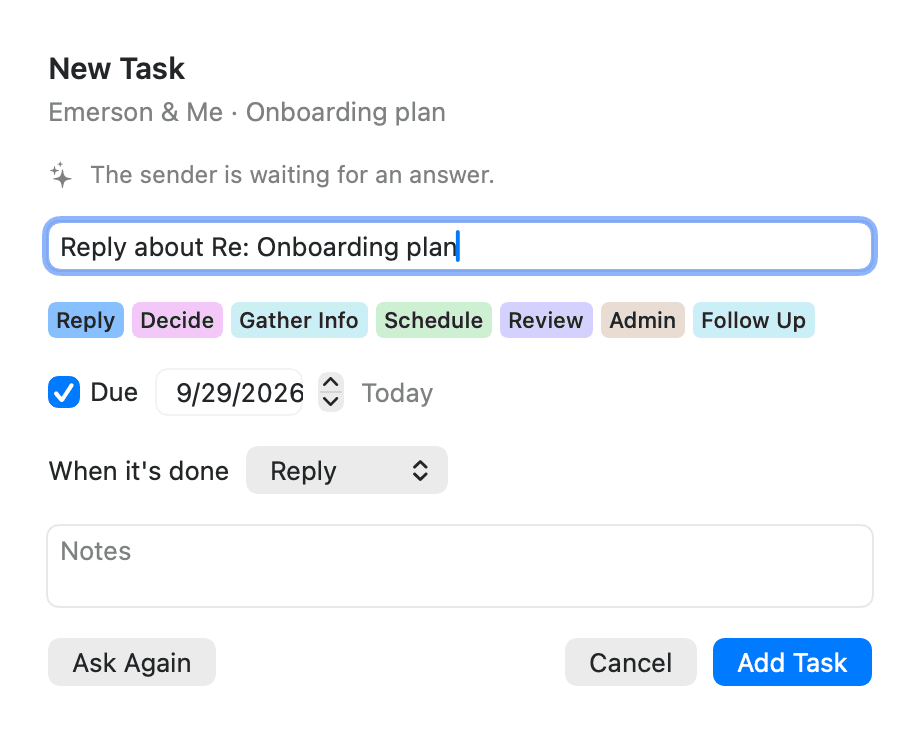
Press t on an email, or ⇧T on many, and Claude reads them and suggests what you need to do: a title, a category like Reply, Decide or Schedule, a due day, and why. You accept or edit each one.
Tasks live on your Mac, grouped by when they're due. Gmail only sees a Task label, so your web and phone inboxes stay in step.
Let an agent action the task
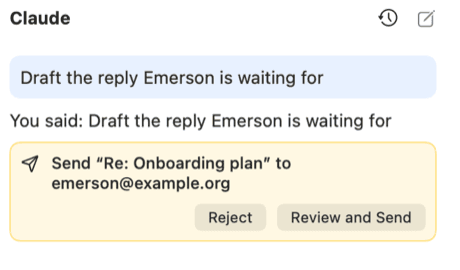
Open a task and ask Claude or Codex to take it on: gather the information it needs, draft the reply, file the thread. The agent works through a small set of mail tools and proposes anything that would leave your Mac.
Nothing it writes goes out unseen: a send it proposes opens with Review and Send on the email itself, in the composer, for you to change before it goes, or you reject it. Reply to a conversation with an open task yourself, from anywhere, and the composer names the task and offers Send and Finish Task or Send, Keep Task Open.
Mail routines, on your Mac or in Claude's cloud
Routines sort automated mail — alerts, newsletters, receipts, pitches — into labels you check daily, weekly or monthly, so your inbox holds only mail that needs a person.
Shape a routine in a structured editor and preview it, then run it locally with your own agent, or publish it as a Claude Code cloud routine through your own Claude login so it keeps going when your Mac is asleep.
The Weekly reading workflow then brings each label back on the day it is due, one email at a time as Kaluta's summary. Send one back to the Inbox and Kaluta proposes leaving that sender alone next time, for you to accept.
- 1-DailyDaily
- 2-Weekly-NewslettersWeekly
- 3-Weekly-EventsWeekly
- 4-Weekly-FinanceWeekly
- 5-Monthly-PitchesMonthly
A writing guide learned from your own sent mail
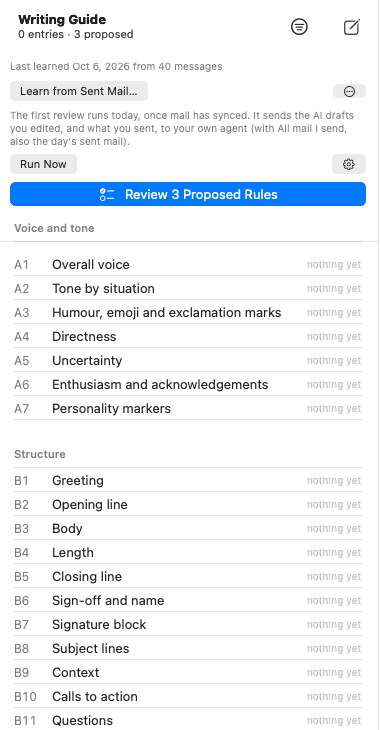
Choose how many of your recent sent messages to learn from. Your own agent reads them in a read-only session and proposes how you write — your voice, how you open and sign off, spelling, favourite phrases, how you treat different people — each with quotes from your mail as evidence. You accept, edit or reject every entry, and a short interview covers what mail can't show, like confidentiality and what to do when unsure.
Every AI that writes for you then follows the guide: writing help in the composer, the agent column and routines, with Claude Code or Codex. Drafts say who they're written for, rules are checked before you see a draft, and the agent asks rather than inventing a fact it doesn't have.


It keeps learning from your edits
Once a day, Kaluta compares what the AI drafted with what you actually sent. Where your edits show the guide is wrong or missing something, it proposes a rule change, with the two versions side by side and the differing words marked. A pattern needs to show up in two or three messages before it's proposed. The Writing Guide's header says how many rules are waiting, and the Teach Kaluta workflow takes you through them one at a time with their evidence: accept, edit or reject each one, and every decision can be undone. What you tell Kaluta when it writes for you counts as evidence too, and a proposal can quote your words.
A Facts page keeps what agents may say about you: your name, time zone, calendar link, role, the people you mention. Each fact is marked use freely, ask before using, or never share, and can be kept to one account or shared across all of them. New facts found in your sent mail arrive as proposals too. Passwords, card numbers, government IDs and other people's health details are never stored.
An email address of its own for your agent
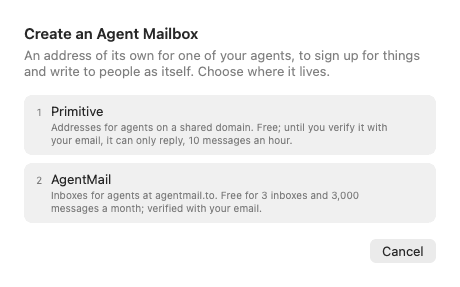
Give an agent its own mailbox, so it can sign up for services and write to people as itself rather than as you. Pick a service, name the agent, agree to the service's terms, and the address is created and open in a few seconds, with no agent involved in the setup. Verify it with your own email to raise its sending limits. Once you have one, adding another agent is just a name: they share the service account, its key and its verification, and on Primitive you can put them on a domain you own, with the DNS records listed and checked by the app.
Each agent mailbox is a full account: its own writing guide, facts, routines and undo. You read its mail and can send as the agent. Per mailbox you choose whether agents send freely (each message is checked against the mailbox's guide and logged) or ask before each send, as on your own accounts. Deleting mail always asks. Verification codes that arrive in an agent mailbox show up large in the Agents workflow, ready to copy. Two services are supported, both free to start: Primitive and AgentMail; the app states each one's limits in its own words.

Clean Up: clear years of mail in one go
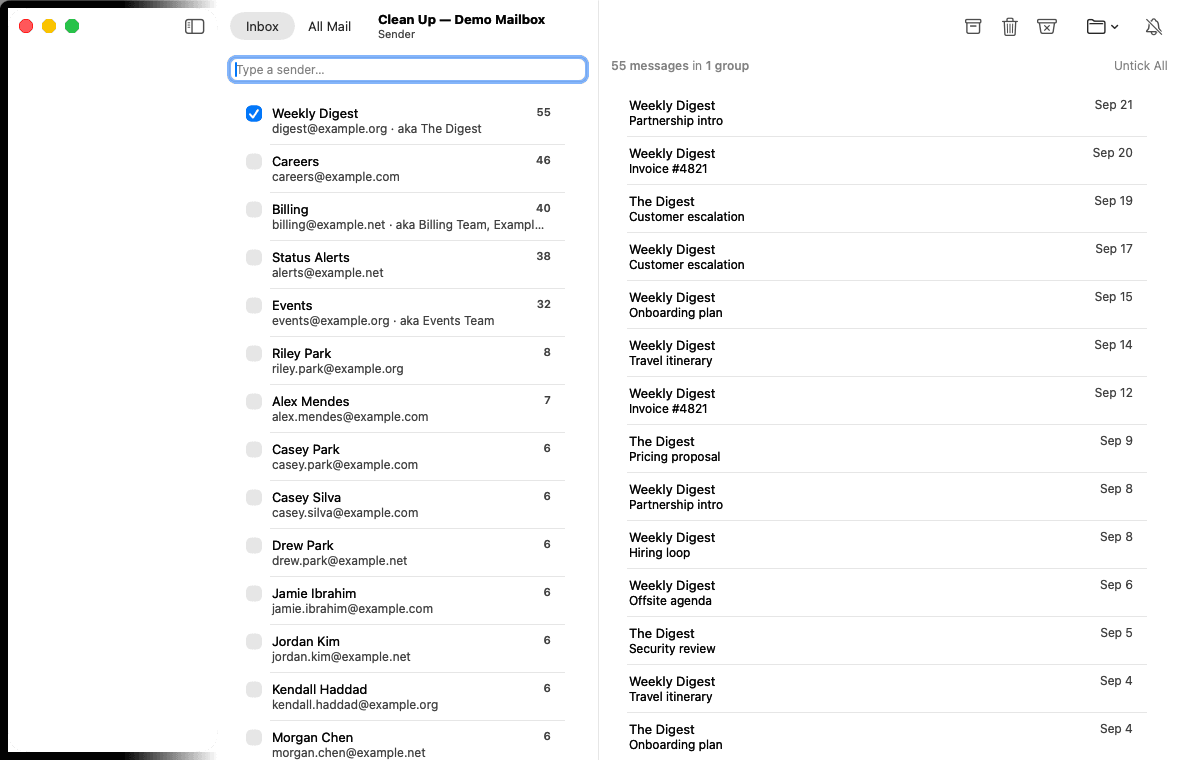
A window for the once-a-year tidy rather than the daily one. It groups a whole mailbox by sender, by people you've written to, by subject, mailing list, time, size, or Gmail's Social and Promotions categories. Tick the groups you're done with and archive, move, trash or mark as spam every message in them, thousands at a time, with one Undo to bring them all back. It acts on messages, not threads, so a person's reply in a mixed thread stays where it is.
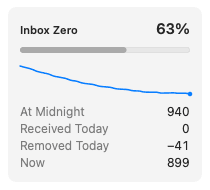
The Mailing Lists view can unsubscribe you: one request to the list's own site after a confirmation naming each list, or a filled-in message in the composer for you to send, never behind your back and never by an agent. A card at the foot tracks your progress towards Inbox Zero, with today's numbers and a month's trend.

Replies that know when you're free
Connect your Google Calendar in Settings › Accounts and, when an email asks to meet, Kaluta offers real free times: two or three, within your usual hours and time zone, with at least two hours' notice. The Triage card says what it can offer before you reply, and the answers written ahead offer those times. Hold these (⇧⌘H) puts them on your calendar as tentative, private holds with nobody invited, and one Undo releases them all.
The calendar is never asked for at sign-in, and Kaluta asks Google for as little as it can: when you are busy, never what your events are, and permission to add and remove its own holds. Agents see free times, never event titles or attendees. Without a calendar, Kaluta offers your calendar link (cal.com, Calendly, a Google booking page) if you have one, or asks; it never invents a time.
Hi Taylor,
Happy to. Any of these work for me:
Jo
Text an email hides is kept from your agent
An email can hide instructions meant for an AI: white or zero-size text, elements styled not to show, invisible Unicode characters a model reads as plain words. Kaluta finds them when mail syncs and leaves them out of everything agents, search and Kaluta's own prompts read; an agent sees only a note, in Kaluta's words, that something was left out.
You still see the email as it was sent. The reader says when an email hid text, with Show It, and a workflow card has Hidden text beside Open the email. Not caught yet: text hidden by an email's stylesheet rules rather than on the element itself.
Hi Jo, your October invoice is attached. Thanks for your business.
Try it with a demo mailbox
Build Kaluta from source and explore all of this with made-up mail, without connecting an account.
Try it on your MacHow it compares: Kaluta vs Superhuman · Kaluta vs Mailstrom · Kaluta vs Apple Mail · Kaluta with Gmail